
The Insta360 X6 is a 360-degree camera currently on sale. It’s Insta360’s flagship model that allows you to easily shoot 8K50fps 360-degree panoramic video. It also has a function that allows you to select and edit your favorite angles from the video data, making it very popular for shooting exciting sports and outdoor footage.
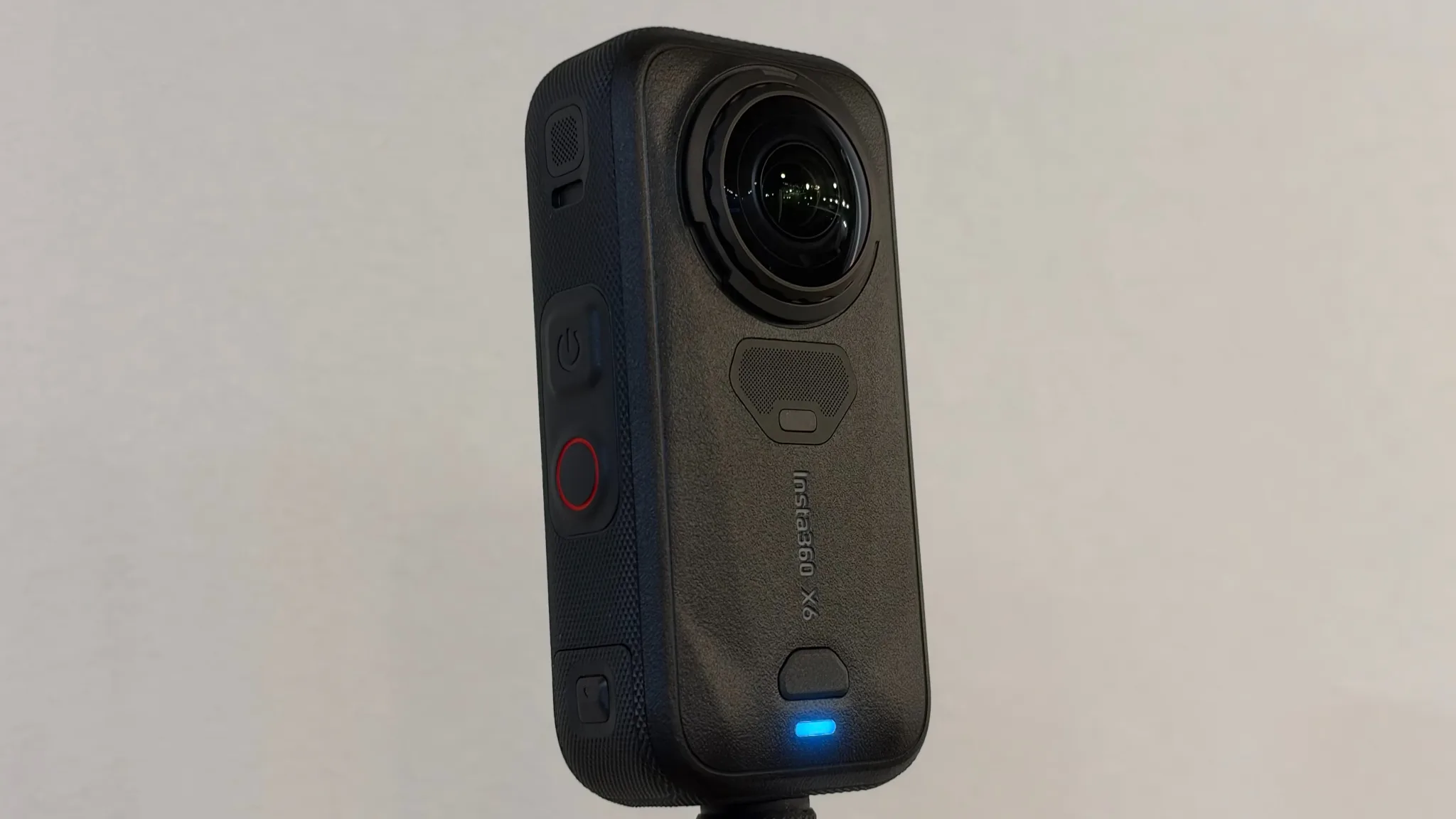
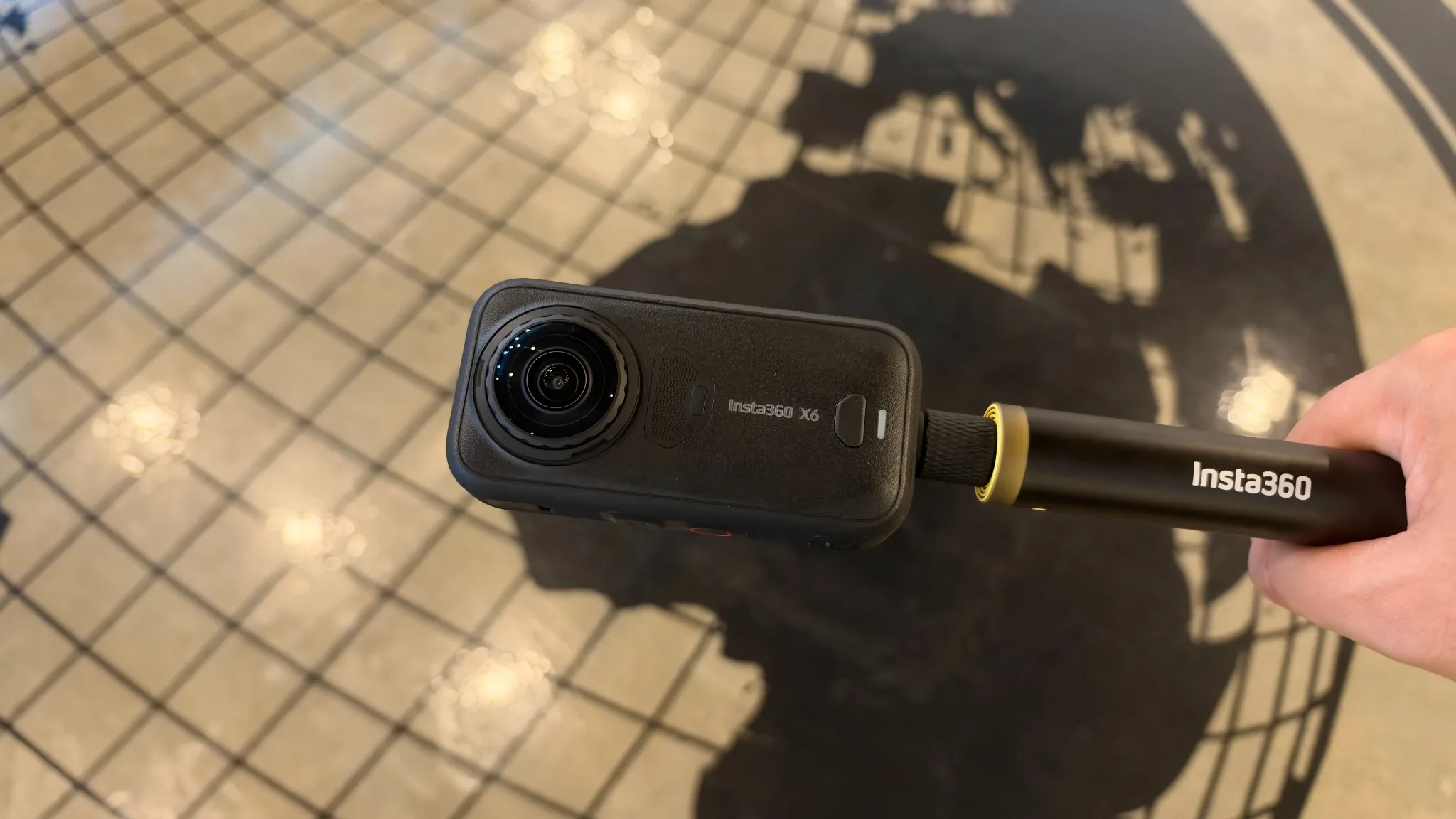
The Insta360 X6, in particular, features two new ambient light sensors, making it much better suited for nighttime shooting and allowing you to capture vibrant surrounding scenery in any situation. It also boasts a 360-degree windproof microphone, ensuring clear audio recording even in noisy outdoor environments. The Mogura VR editorial team used it for both video recording and shooting, and found that with this one device, we could confidently record both video and audio.
By the way, if you have a high-performance camera like the Insta360 X6, there’s a feature you should definitely try. That’s the new “Spatial Capture” feature that was released in August of this year. Apparently, using the Insta360 smartphone app, it’s possible to create spatial representations using 3D Gaussian splatting from recorded video data. In other words, the Insta360 X6 might also be usable for 3D scanning of spaces… (Note: This feature is currently only available on the X6, X5, X4, and Air models).
(Details on 3D Gaussian splatter are listed below)
3D scanners that support the 3D Gaussian splatting format are currently very expensive. While there are options such as Niantic Spatial’s “Scaniverse” and XGRIDS’ “PortalCam,” which is relatively inexpensive for a scanner, the ease of use of this method, which can automatically capture space from captured 360-degree video, is very appealing. Given the high specifications of the device itself, high accuracy in 3D scanning can also be expected.
Therefore, I decided to try out the “Spatial Capture” function again. Here’s my report on my impressions.
I tried out “spatial capture”.
A word of caution: “Spatial Capture” is currently in beta, and development is still ongoing. Therefore, the terms of use may change in the future. It can be used up to four times a month, and requires payment of in-app credits (the number of uses resets on the 1st of each month. Credits can be purchased for a fee). It is not possible to export the outputted 3D space data in a specific file format. Please also note that it can only be viewed via a smartphone app or browser.
Now let’s try “Spatial Capture.” All you need is 360-degree video data. Set the recording mode to “360-degree video mode.” A recording resolution of 5.7K and a frame rate of 30fps are recommended (Dolby Vision and iLog modes are not supported), so set these beforehand.
This time, we took photos in a space without moving people or cars. This is basic knowledge when 3D scanning, not just for “space capture” mode, but it’s best to avoid spaces where moving objects are likely to be captured. Also, because the entire space is captured, it’s necessary to check beforehand to make sure that the location doesn’t capture unintended objects.
To minimize camera shake and other stabilization issues in the video, it’s best to stabilize the camera with a selfie stick or gimbal if possible. Then, slowly film the space you want to scan (filming too fast will naturally result in a blurry scan). For large spaces, film in a circular motion; if there are obstacles, film in an S-shape to ensure even coverage. Note that the video data usable for “Spatial Capture” is limited to 30-120 seconds, so keep the time in mind and scan slowly.
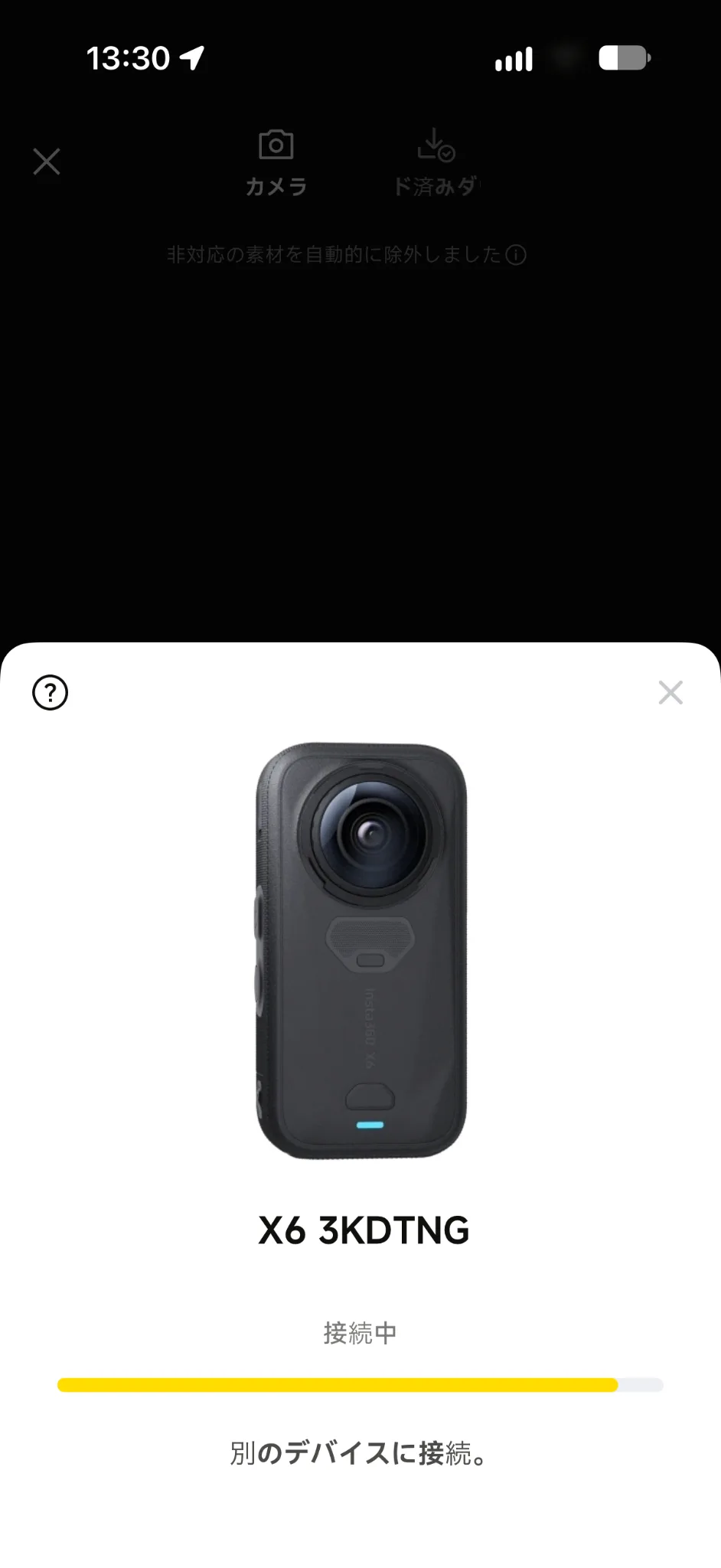
Once you feel you’ve captured everything evenly, stop shooting. The subsequent processing is done through the smartphone app. First, with the app open, wirelessly connect the “Insta360 X6” to your smartphone. Tap “Spatial Capture” from “Album” and select the video you want to output. Importing the video data into the app takes some time, so it’s best to wait if it doesn’t appear immediately in the options. If it still doesn’t appear, it’s possible that one of the previously mentioned conditions has been met.
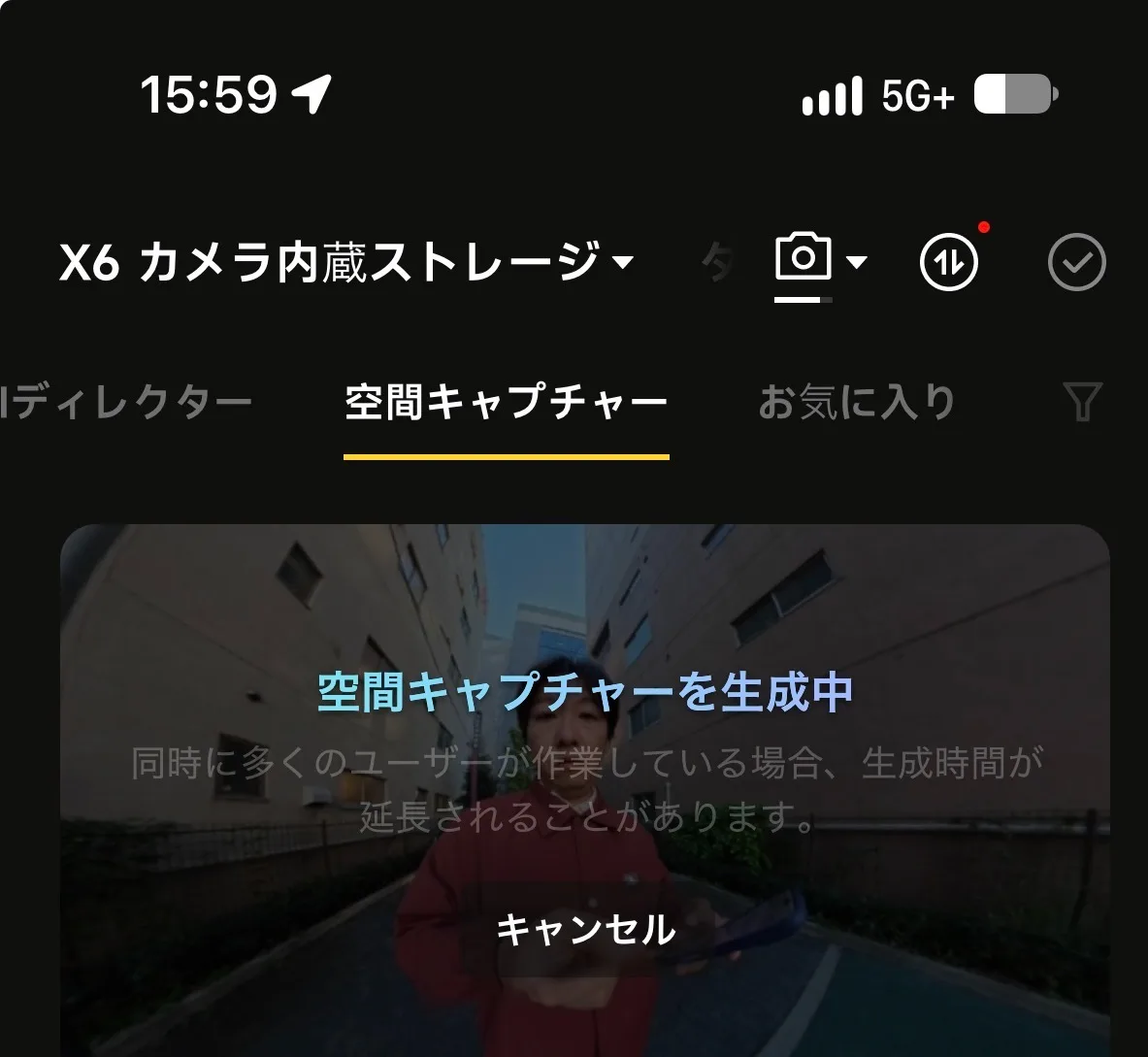
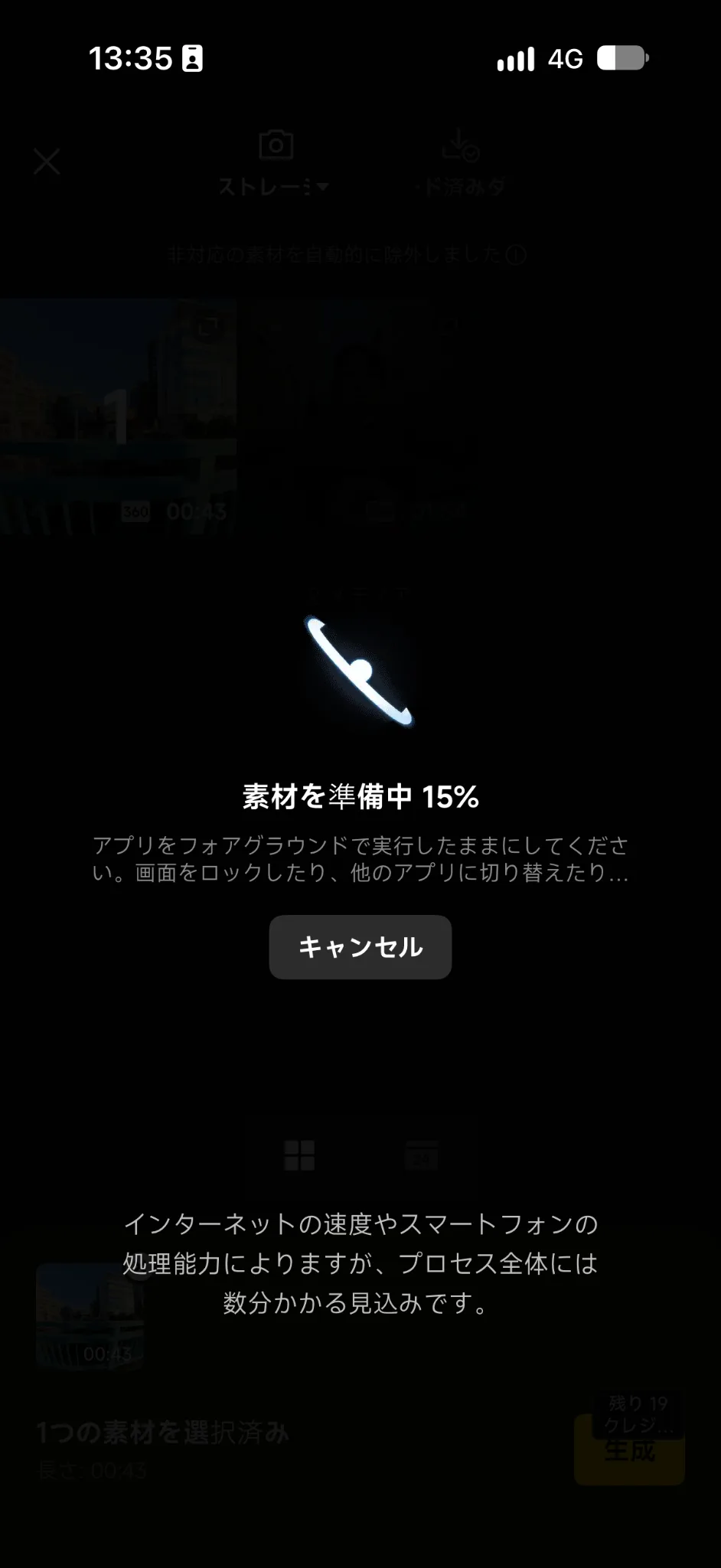
Once you’ve successfully selected your video, all you have to do is press the generate button. Even at this stage, generation takes some time, so be patient. In my case, generating a 2-minute video took about an hour, but this may vary slightly due to other users working on the same cloud.
Now, here is the completed 3D Gaussian splatting output data. I think it’s difficult to convey the full effect from the image alone, so if possible, please view it in your browser.
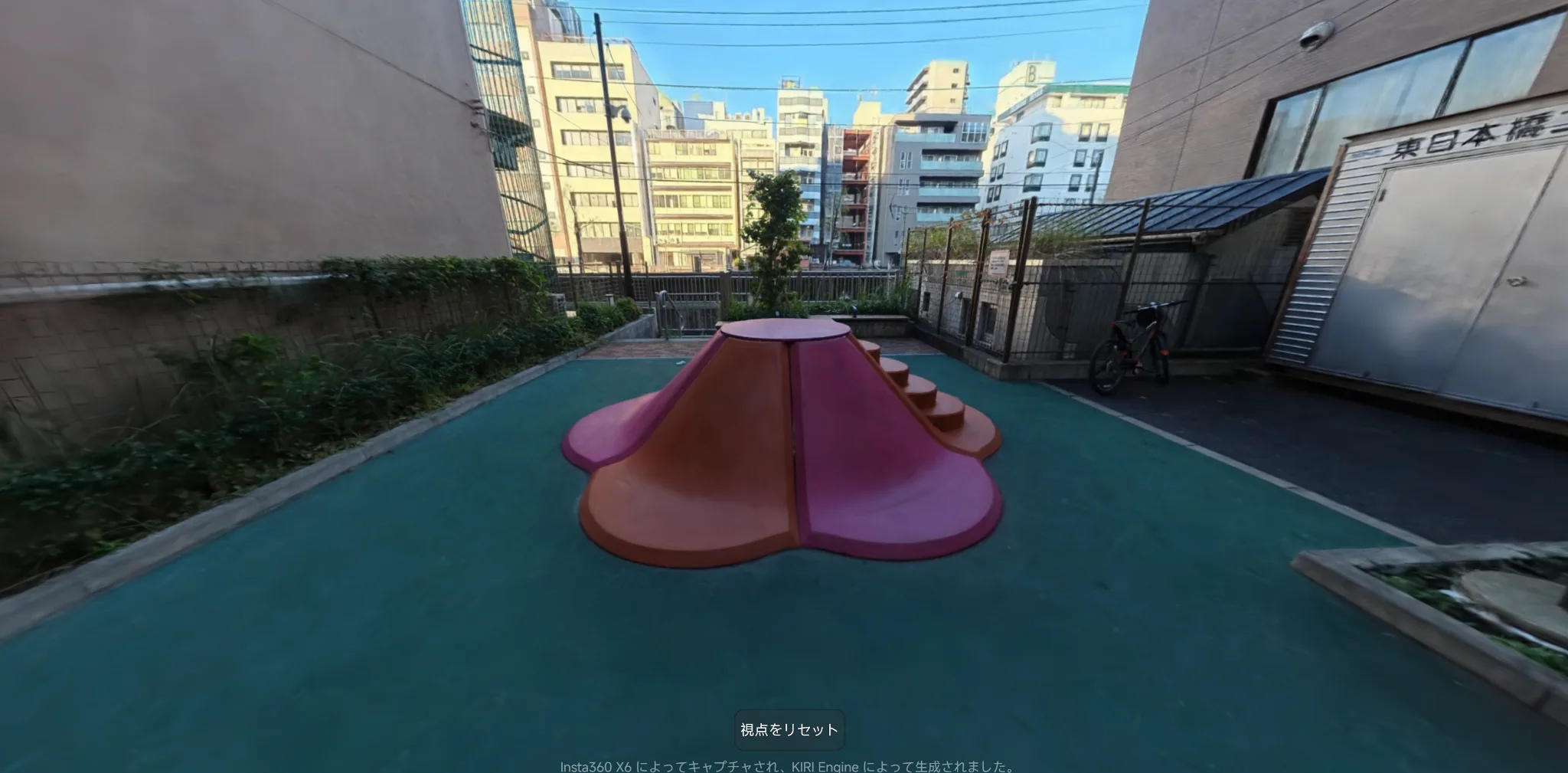
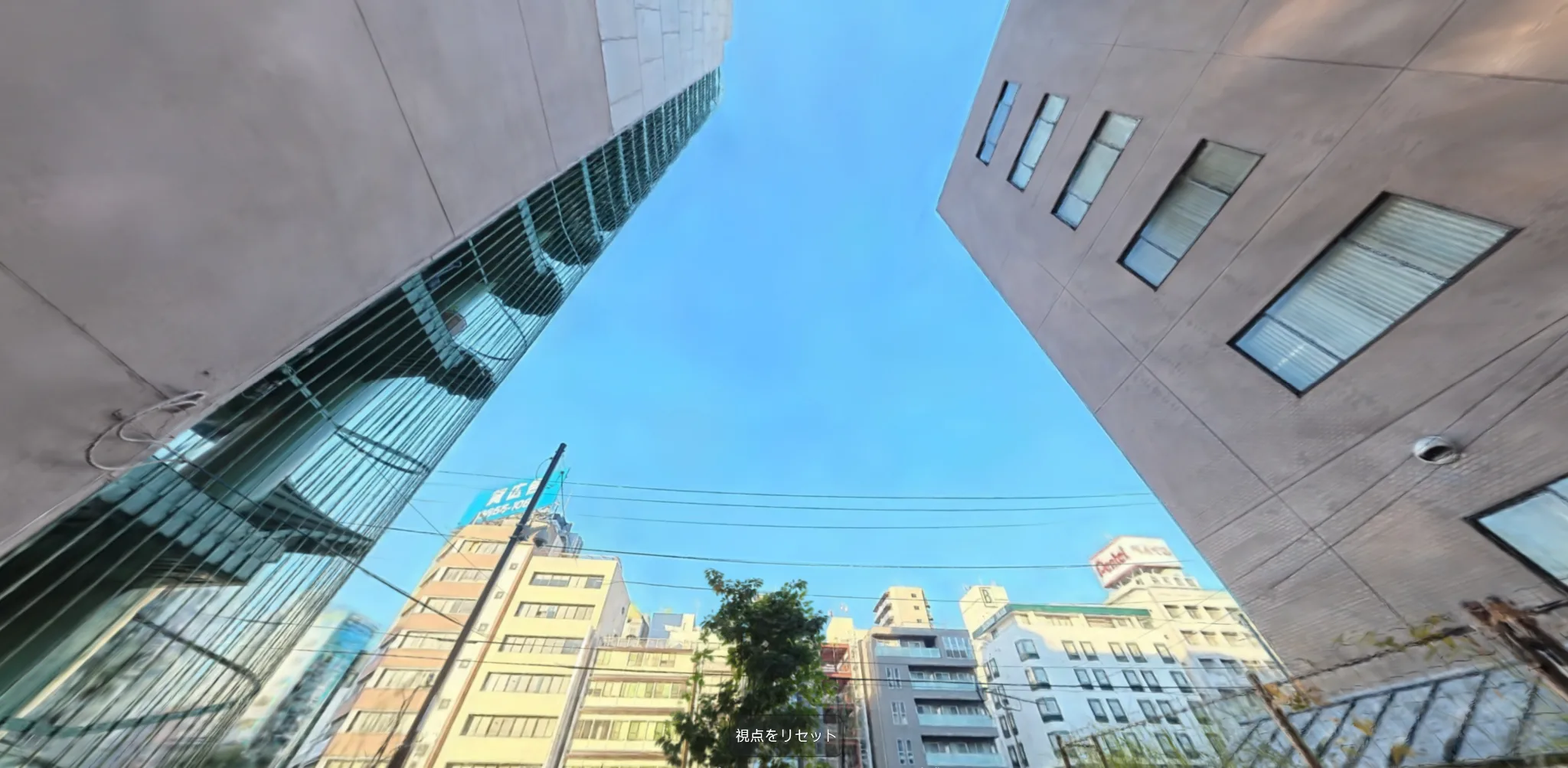
It’s truly impressive. I never thought that just scanning around for about two minutes could capture the entire space so clearly with virtually no fatal flaws in the objects. My impression is that 3D scans often result in slightly distorted distant scenery, especially in large spaces, but perhaps due to the excellent camera performance of the “Insta360 X6,” it has beautifully reproduced even areas that I wasn’t consciously pointing the camera at.
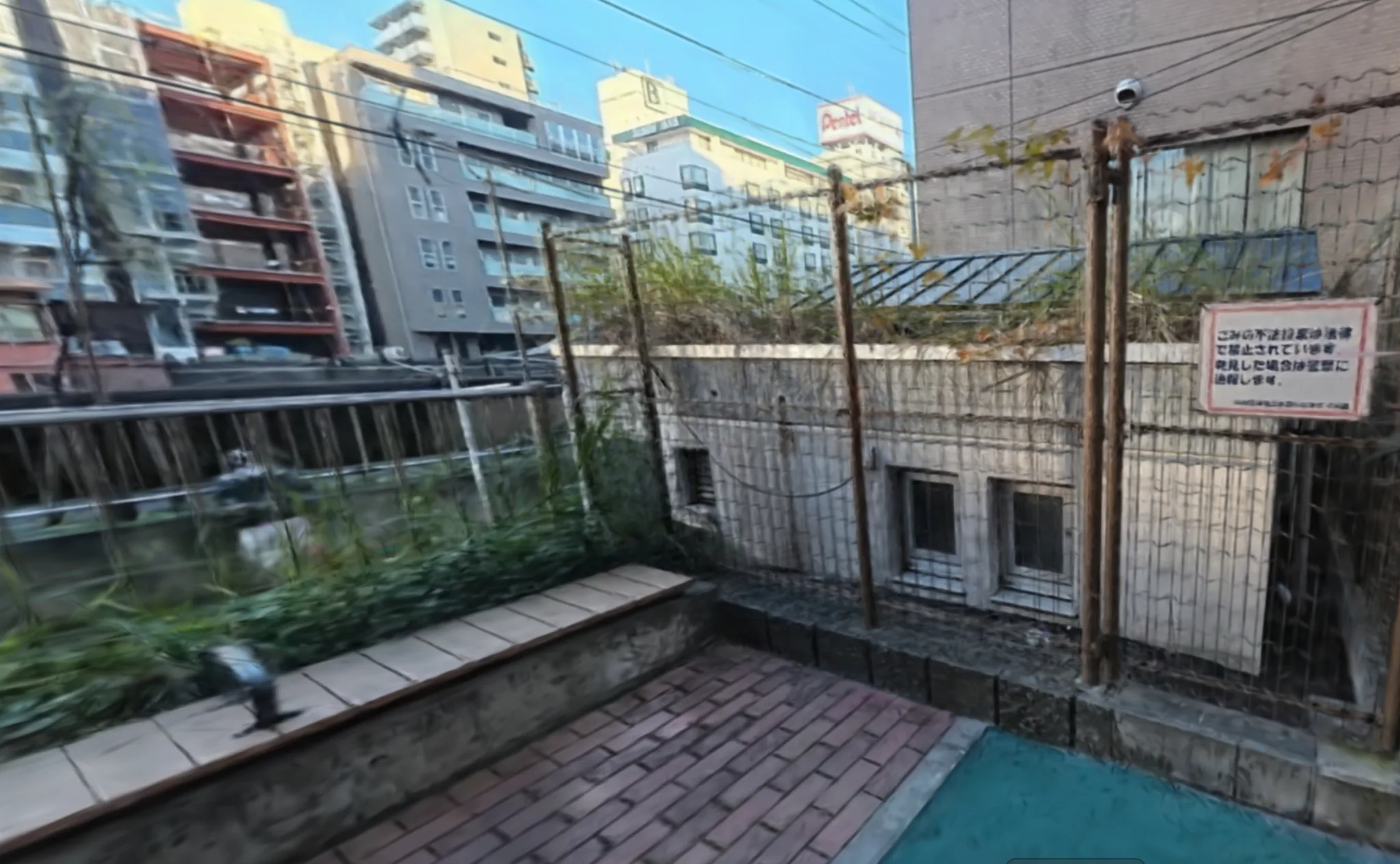
Another interesting point was how the photographer’s image was neatly removed during processing. Because 360-degree cameras have lenses on both the front and back, the user’s figure inevitably appears in the image, but judging from the space shown above, the user’s figure is not discernible. This suggests that the app’s recognition of people was accurate (the generation utilizes Kiri Engine technology).
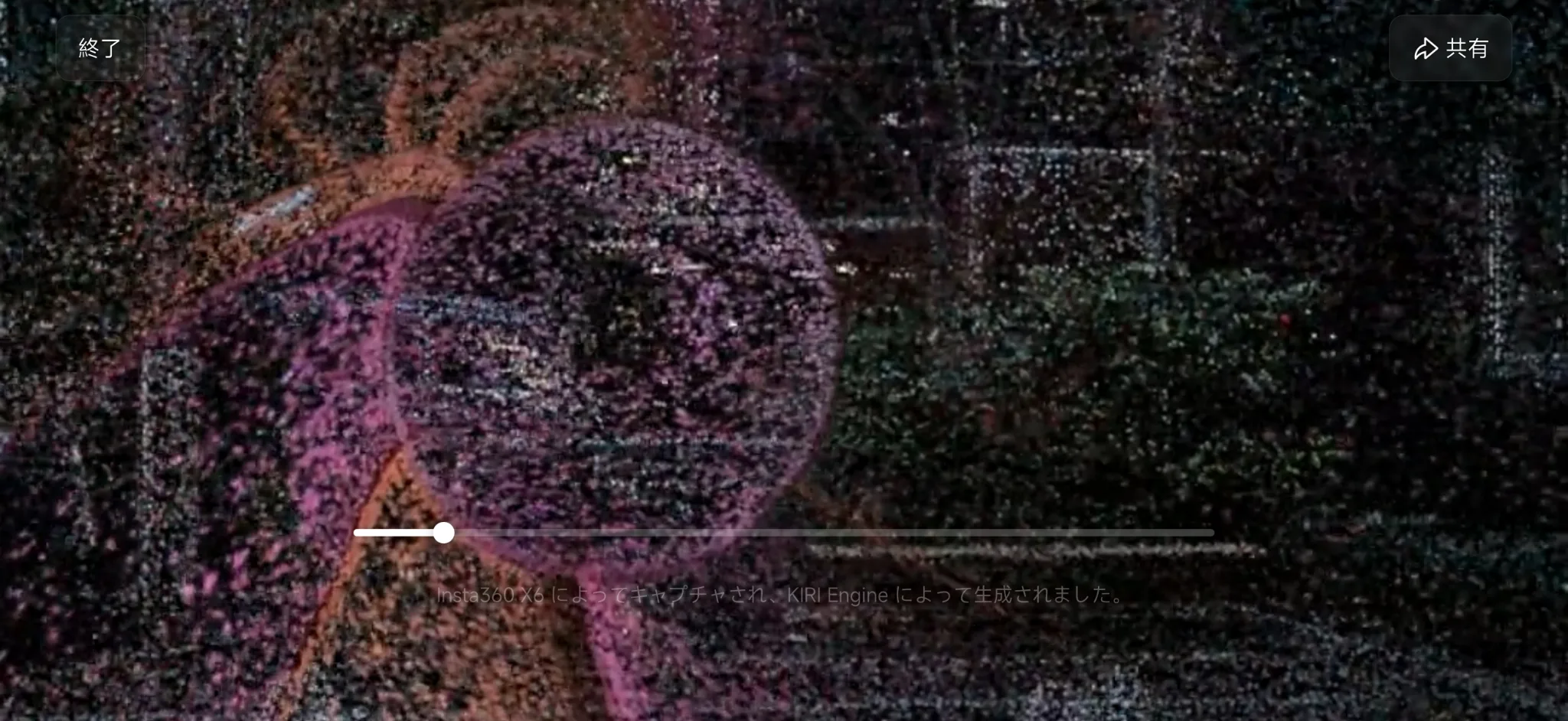
The ability to view scanned data from any viewpoint by controlling the camera is also a good feature.
Even those unfamiliar with 3D Gaussian splatter technology will immediately appreciate its impressive effects. The app also features modes with slightly more unique visual effects, such as “particles” and “ripples,” making it interesting to compare the differences.
Of course, perfect 3D scans aren’t always produced. For example, objects with a series of thin rods, such as stair railings or bridge railings, were quite difficult to scan. Scanning in areas with insufficient light also resulted in disappointing results (it might be better to go back and forth multiple times in such areas). In addition, the photographer’s face or figure occasionally appeared in the scan. These issues can potentially be resolved with improved 3D scanning techniques, so it’s a good idea to record multiple scans during the shooting process. Nevertheless, the Insta360 X6 still produced scans of remarkably high quality.
I hope they add export support in an update as soon as possible.
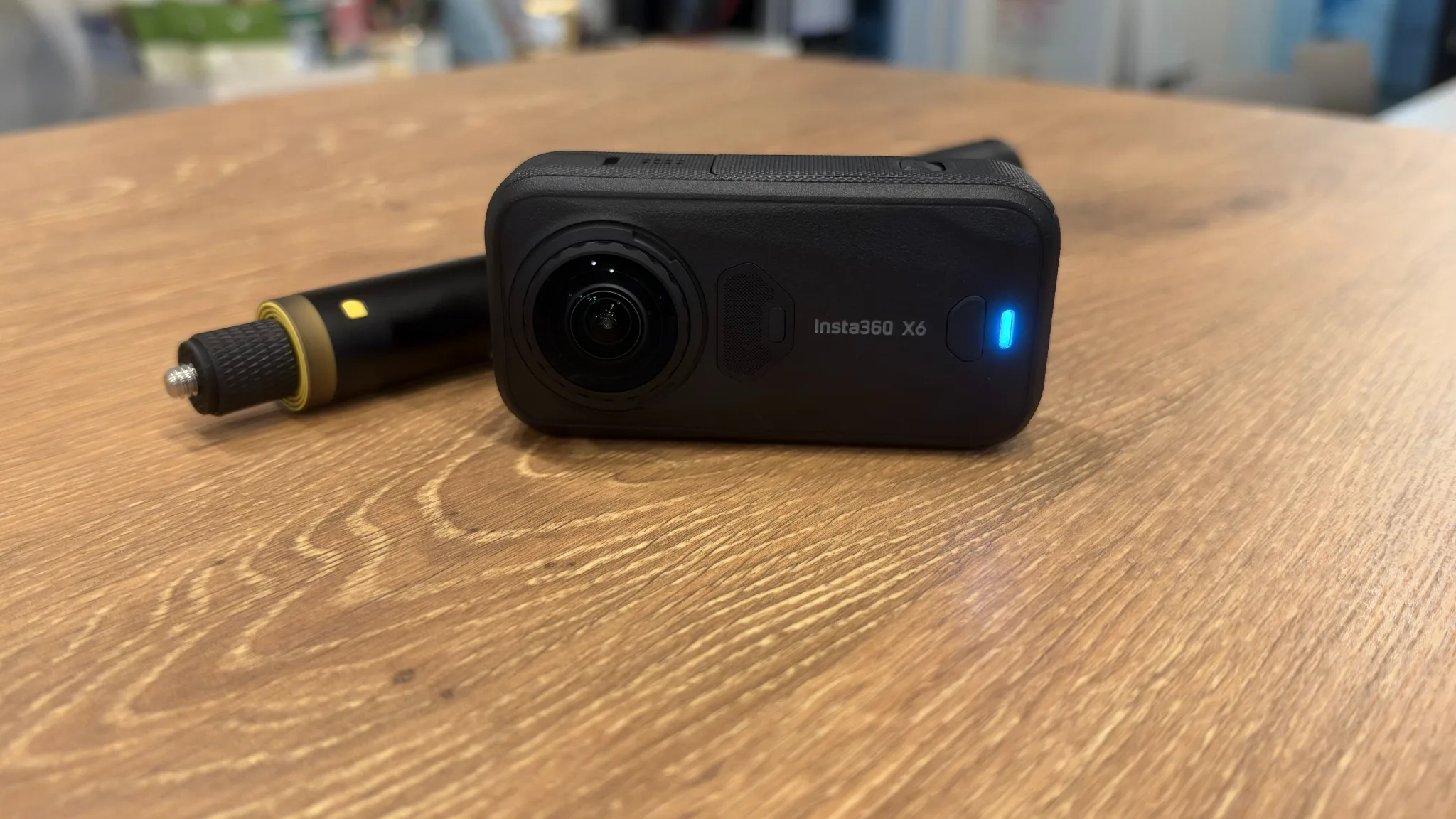
The 3D scan results were very satisfying. However, the main issue that remained was the aforementioned inability to export in specific file formats. If this issue could be resolved, the Insta360 X6 would undoubtedly become an extremely useful device not only as a 360-degree video camera but also as a high-spec 3D scanning device. For example, scanned data could be downloaded and used as material for games, reproduced directly as a space in metaverses such as VRChat, or even used for business purposes as a service for viewing spaces.

Development of “spatial capture” is still ongoing, so we are eagerly awaiting an update that will resolve this issue. The editorial team will continue to explore the possibilities of spatial capture with the “Insta360 X6” in the future.
The official website is here: https://www.insta360.com/jp/product/insta360-x6