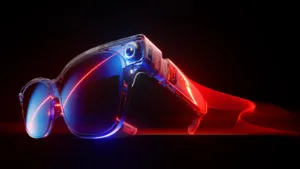
AR glasses, which are smart glasses specifically designed for video viewing, are attracting attention. In this article, we will review the “VITURE Luma” from VITURE, which is gaining attention for its diopter adjustment function, and provide our impressions of using it in practice.

What exactly are the AR glasses “VITURE Luma”?
“VITURE Luma” is a glasses-type device that connects to smartphones and PCs. When connected, images are displayed on the lenses. This makes it usable for watching videos, playing games, and working on displays. Its key feature is that it allows for a large-screen display even in environments where a large display is not available.

(Image of AR glasses in use)
“VITURE Luma” is a AR glasses device that stands out for its “diopter adjustment” and “1000 nits (*) brightness.” (*”nit” is a unit of brightness. 1000 nits is more than 2 to 3 times brighter than a typical laptop screen.) The resolution is around 1920 x 1200 (1200p), which is not particularly high image quality compared to typical PC monitors, but its key features are its lightweight design and ease of use.
The “diopter adjustment” feature, which will be discussed later, is a particularly welcome function for those who already wear glasses. Typically, glasses-type devices require the purchase of additional corrective lenses or being forced to wear them over existing glasses (which may not be possible depending on the shape of the device and glasses), which can be a hurdle to purchase. However, “VITURE Luma” may solve this problem (for those who are not confident in their eyesight).
Appearance and basic operation
The shape is the same as typical sunglasses. However, the frame is transparent (allowing you to see the internal circuitry and components), giving it a gadget-like appearance.


One of its selling points is the nose pad, which is made of a hollow silicone pad, providing an extremely soft and comfortable fit.

You can choose from four types of nose pads.

The connector for connecting to smartphones and PCs is located at the tip of the temple. (USB-Type C)

(This is what it looked like when employee N tried on VITURE Luma.)
Each dimension
The dimensions were measured by the author using a ruler. They’re roughly the size of slightly oversized sunglasses.

(Dimensions of the main body with the temples open)

(Dimensions of the frame with the temples closed)
This is great! A large screen that’s visible even to nearsighted people without glasses.
We’ll actually connect it to each device and start using it. First, we’ll connect it to the iPad. There are no complicated operations; the screen will appear on the display the moment you connect the cable to the device.


(A view of the “VITURE Luma” display)
Next, I will adjust the diopter to see clearly, as I am nearsighted (my visual acuity is approximately 0.07). The dial at the top is for diopter adjustment and can be adjusted from “0.00 to -6.0D”. If you have a prescription from when you had your glasses or contact lenses made, please check your SPH (spherical power, the degree of nearsightedness or farsightedness).
As we make adjustments…

(Adjust using the dial at the top of the display)
Wow, I can see the display even without glasses!

(The author is impressed that he can enjoy the video with the naked eye.)
Note that when connected without the app, you need to lower your gaze and operate it using your iPad. Using the dedicated app, “SpaceWalker for iOS,” the iPad becomes a touchscreen, and a pointer appears on the “VITURE Luma” display, making it easier to operate without lowering your gaze. You can also watch YouTube, Netflix, and other services via the app.
*Android For, use SpaceWalker for Android

(VITURE Luma side: Screenshot of the dedicated app “SpaceWalker for iOS”)

(iPad side: Touchscreen. You can move the pointer by swiping the screen.)
Next, I’ll connect it to my PC and try using it as an extended display.
Simply connecting it will cause it to be recognized as an extended display. (The main PC screen will not be displayed on VITURE Luma; only the screen of the extended display will be shown.)
When I tried watching Mogu Radio on YouTube, I noticed the excellent color reproduction that is characteristic of the OLED display. While burn-in is common with OLED displays, I didn’t see any noticeable burn-in even after working for 1-2 hours. However, the right side of the temple and the top of the lens do get warm after prolonged use. It’s not so hot that you can’t touch it, but it’s noticeable enough to be bothersome during use.

(Watching Mogura Radio on YouTube)
Additionally, by installing the dedicated app “SpaceWalker for Windows,” you can pin the screen (pin mode) or display all screens on VITURE Luma. You can also freely choose the display layout (e.g., arranging them vertically).
Personally, I found it easier to work with the browser window displayed in “ultra-wide panorama” mode rather than arranging them vertically and horizontally, because it made it less likely to lose track of the mouse pointer.

(Screenshot of the “SpaceWalker for Windows” application)

(Screen showing the selection of ultra-wide panorama)
Having used it this way, it seems particularly useful for situations where there isn’t enough space for a large screen in your room, or while traveling on trains or bullet trains. (However, be aware that prolonged viewing may cause motion sickness, so take breaks as needed.)
However, the screen displayed on the VITURE Luma becomes grainy and difficult to see when you move your head, making it unsuitable for tasks that require frequent switching between left and right views. Also, as is common with other wired AR glasses, the cable used to connect to the device can be cumbersome.
The VITURE Luma is no exception; the cable can get pulled when you move your head. Using a softer, non-original cable might reduce this stress.
Nose pad adjustment is necessary; for some people, the top of the screen may be cut off.
If the top of the display is difficult to see, please adjust it by selecting one of the four included nose pads with a different wire length.
However, some within the company commented that even with the longest wire nose pads, the top of the screen was still not visible. This is something we hope will be improved in the future.

(Includes 4 types of nose pads)


weight
Regarding the weight, I measured it at 80.4g, which is nearly 3g heavier than the stated 77g. Just to be sure, I removed the nose pads and measured it again, and it was 79.1g, still heavier than the official specifications.


* Except for those without a wire, the nose pads have roughly the same weight.
While these glasses are on the heavier side at around 80g, the temple design that securely holds the head and the soft nose pads make the weight not too noticeable when worn. This is a testament to VITURE’s attention to detail.
Storage case
The storage case has a rounded design and can also store the connecting cables.


Basic specifications
| Features and Specifications | VITURE Luma |
| Display size* | 146 inches (at a distance of 4 meters) |
| resolution | 1920 × 1200 (1200p) |
| refresh rate | up to 120Hz |
| Field of view (FOV) | 50 degrees |
| Brightness (perceived value) | 1000 nits |
| Myopia adjustment range | 0.00 ~ -6.0D |
| Electronic dimming function | can be |
| 3D compatible | correspondence |
| tracking | 3DoF support via dedicated app |
| Color Mode | 5 modes (True color, Vivid, Film, Warm, Cold) |
| audio | AAC System |
| Spatial Audio | correspondence |
| Brightness & Volume Adjustment | 9 levels |
| Connection method | USB Type-C |
| Wear detection | correspondence |
*This is equivalent to a giant 146-inch screen appearing 4 meters away.
Check before purchasing! Be aware of “incompatible models”.
The biggest pitfall when it comes to enjoying VITURE Luma is that “not everything will work just because it has a USB-C port.”
To display images on glasses, your smartphone or PC needs to support the “DisplayPort Alternate Mode (DP Alt Mode)” video output standard. Recent iPhones require particular attention. While the iPhone 16e and iPhone Air have USB-C ports, they lack this video output functionality, meaning you cannot display the screen even with an adapter.
Additionally, many lower-priced Android models and Google Pixel (older than the 8) tend to be incompatible. Don’t assume that “it’s fine because it’s the latest model”; always check the compatibility list on the official website before purchasing to confirm your device’s compatibility.

Overall: The diopter adjustment function is its greatest appeal.
The greatest feature of “VITURE Luma” is its manual diopter adjustment function, which allows even nearsighted people to easily enjoy high-quality large-screen images without glasses. It also offers a comfortable fit and is particularly convenient when used as an extended display for a PC.
On the other hand, there is a clear problem: the frame at the top of the glasses can potentially obstruct the view. Also, since using a dedicated app is recommended to utilize various functions such as display extension, it gives the impression of being less user-friendly than competing products such as XREAL. In the future, improvements to the frame to ensure a clearer view and advancements in the system to allow for intuitive operation without the need for a dedicated app are desired.
There is also a device called the “VITURE Pro Neckband” that enables hand tracking and other features, but at present it is primarily aimed at developers, and there is no need to purchase it if your only purpose is to enjoy watching videos.
Next time, I plan to do a comparison review with the “XREAL One,” which will likely be a point of comparison when you’re considering purchasing this product.
The official website for the product is here: https://www.viture.jp/
This article is an English translation of an original Japanese article, translated by the Mogura VR editorial team.
Reference
https://academy.viture.jp/xr_glasses/luma_introduction